ZYNORAQEnterprise Solutions, Engineered Intelligence
Get Access
☰
Enterprise-grade · Zynoraq Basis team

Download & install ABAP Development Tool KIT for Windows.

Three focused steps. Zero jargon. Backed by Zynoraq Basis consultants, the same team enterprises trust for licensing, rollouts and 24×7 support.

10min setup

Download resource

SAP HANA Studios
ADT-Eclipse IDE
ALD for Windows
SAP Analytics for Microsoft Office
trusted by 4200+ consultants

The guide

Steps from download to first login

Each step includes what to click, what to expect, and a checkpoint so you always know you're on the right track.

1

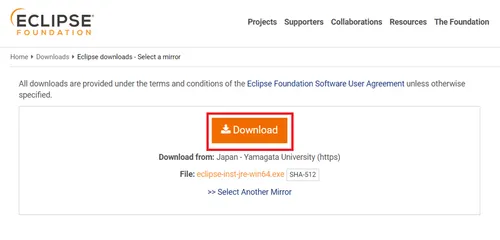
Download Eclipse from the Link and select Download.

Step 1 of 4

SAP GUI Install Steps

Stuck at login?

Need SAP credentials to log in?

We provision ready-to-use SAP user accounts within 24 hours — perfect for practice, training and demos.

Get credentials →
2

Select Download.

SAP GUI Install Steps

Step 2 of 4

1

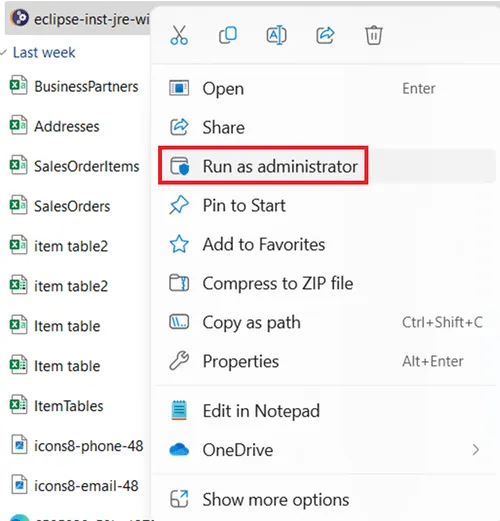
Open the downloaded File -> Right Click -> Run as Administrator.
SAP GUI Install Steps
2

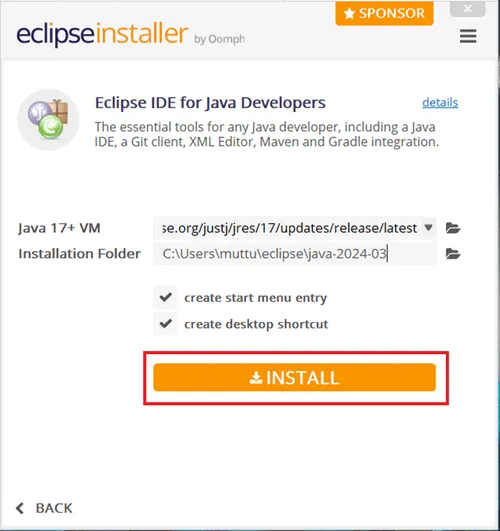
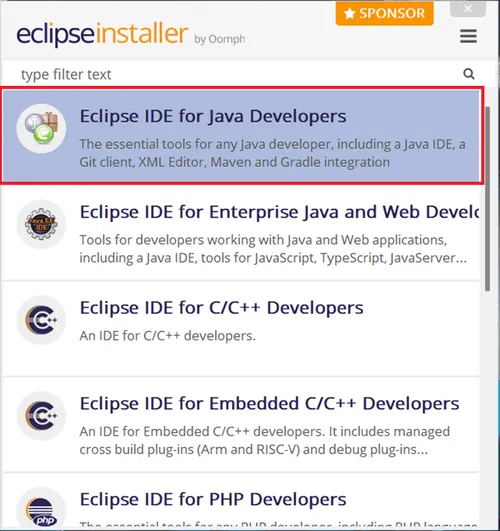
Select “Eclipse IDE for java developers”.
SAP GUI Install Steps
3

Select “Install”.

SAP GUI Install Steps
4

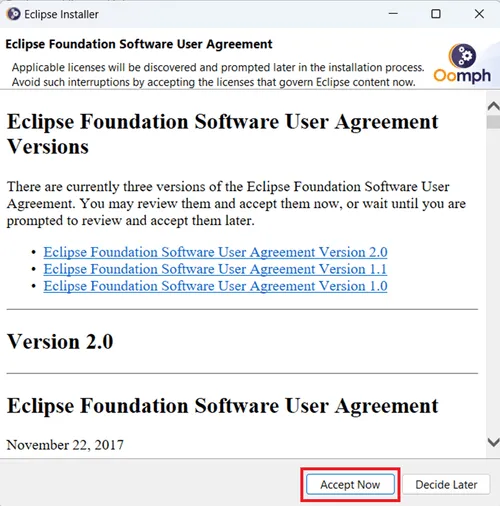
Click on “Accept Now”.

SAP GUI Install Steps
5

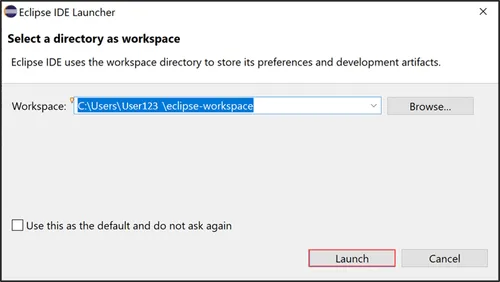
Launch your workspace.

SAP GUI Install Steps

No system yet?

Need a server to practice on?

We spin up dedicated SAP demo systems in hours, ready for connection testing.

Request a demo system →
3

Add the ADT Plugin in Eclipse IDE.

Step 3 of 4

1

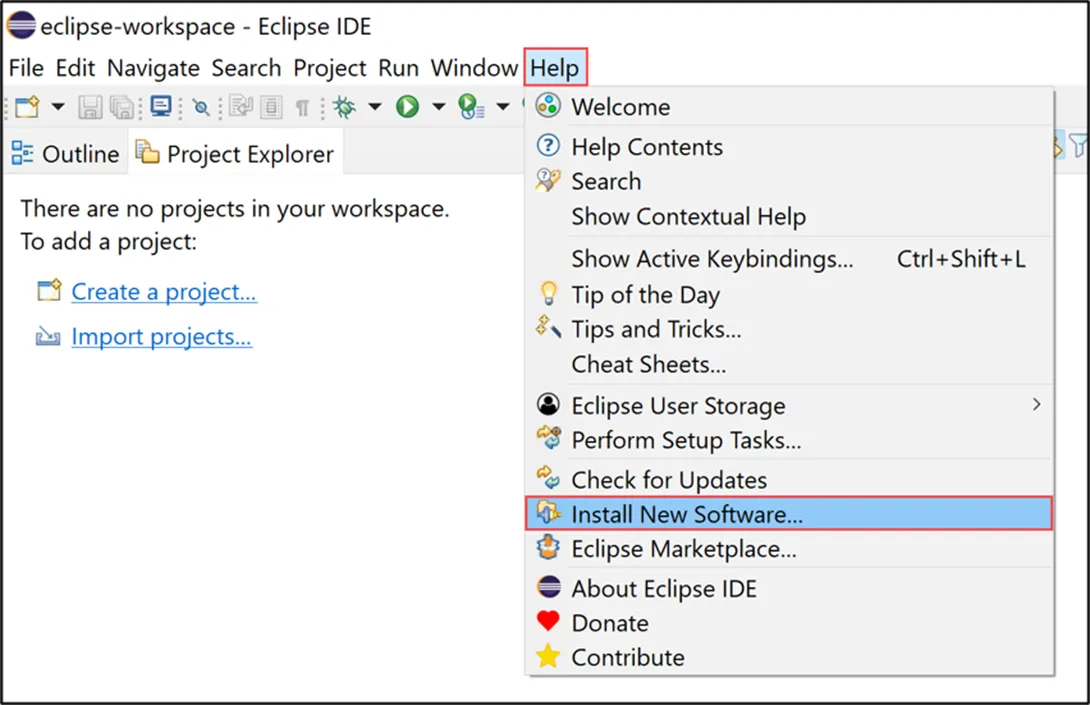
Select "Help>Install New Software"

SAP GUI LOGON DETAILS
2

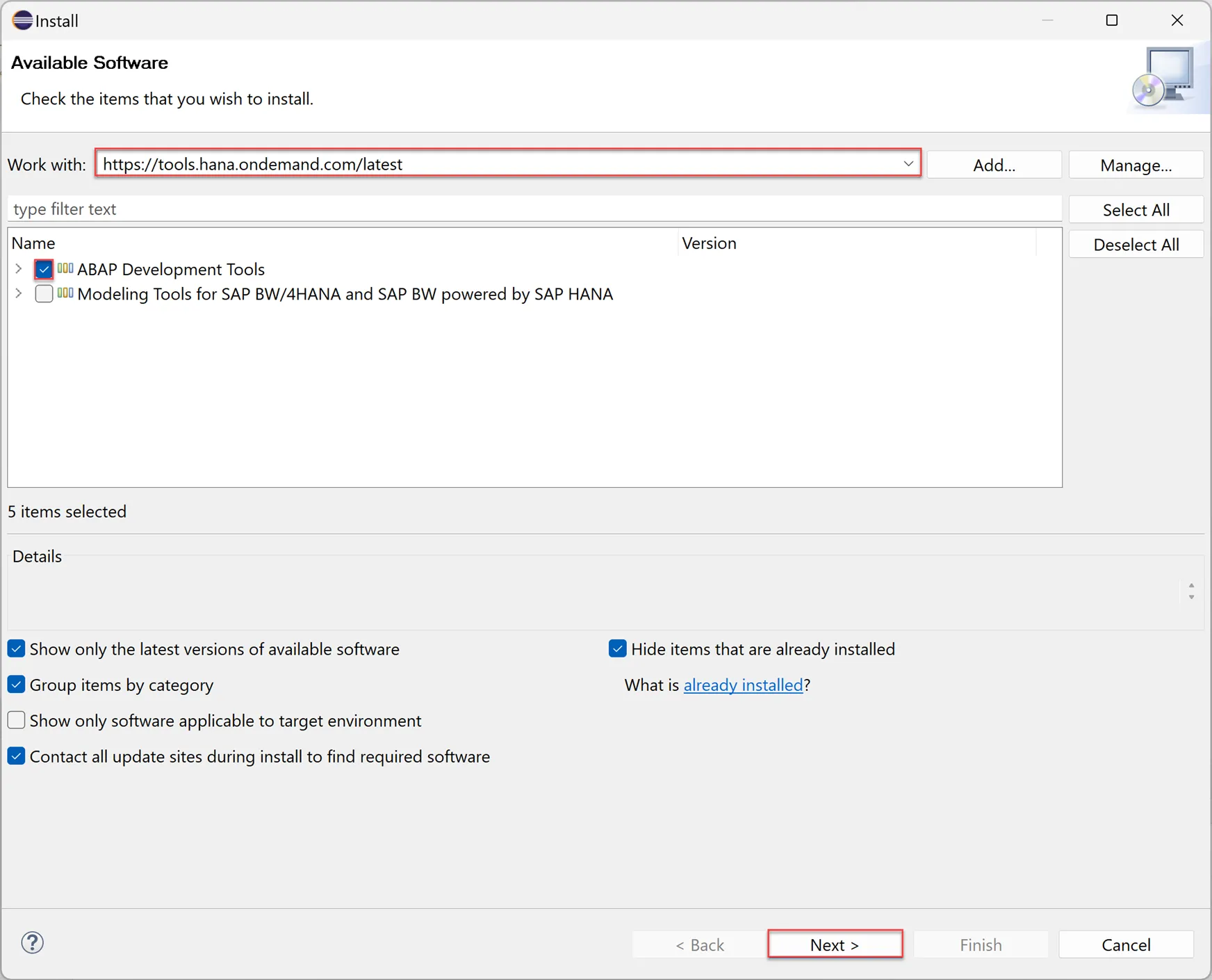
Enter the latest ADTURL from the link https://tools.hana.ondemand.com/latest in the Work with section,press enter, select ABAP Development Tools andclick Next >.
SAP GUI Install Steps
3

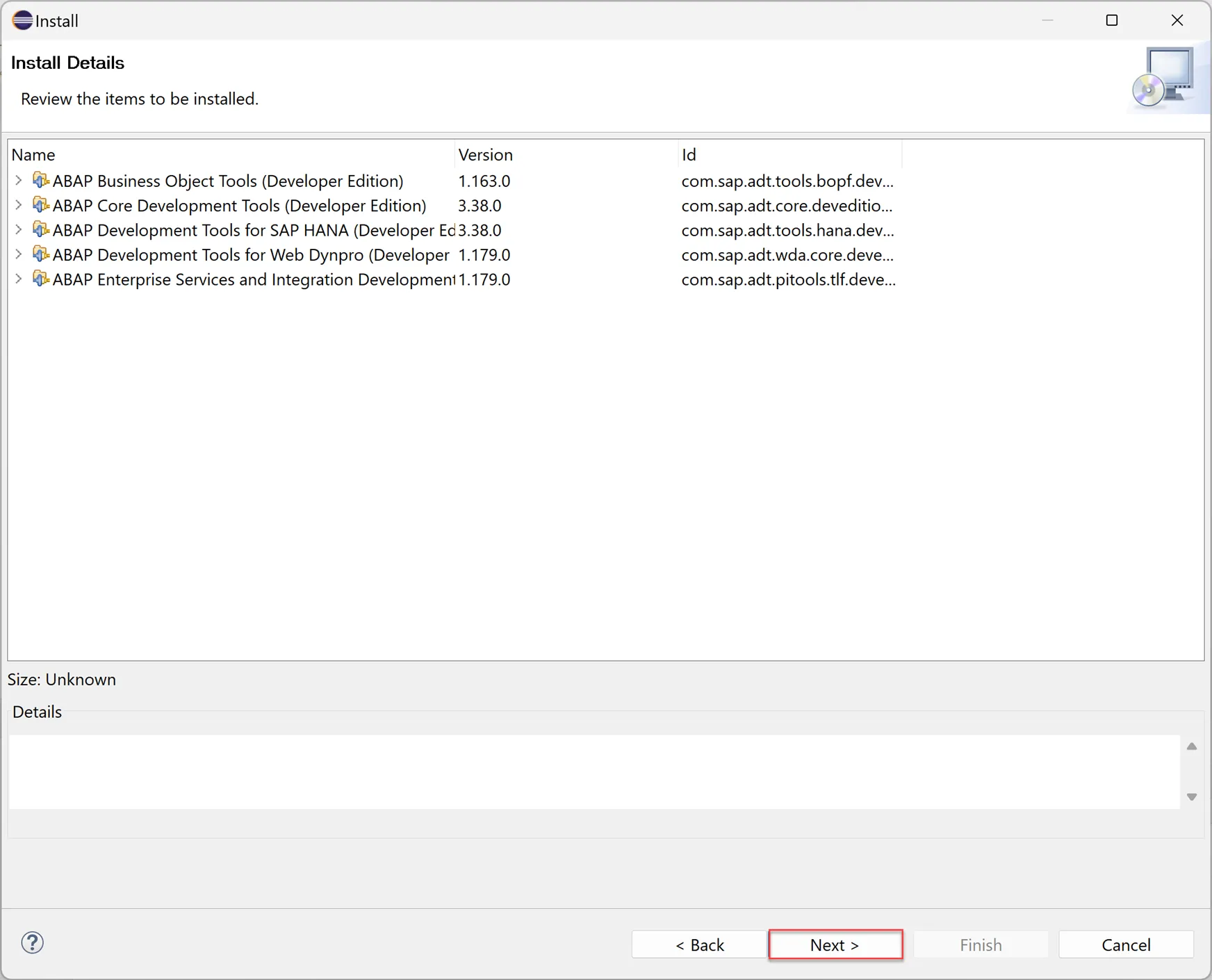
Click "Next >".

SAP GUI Install Steps
4

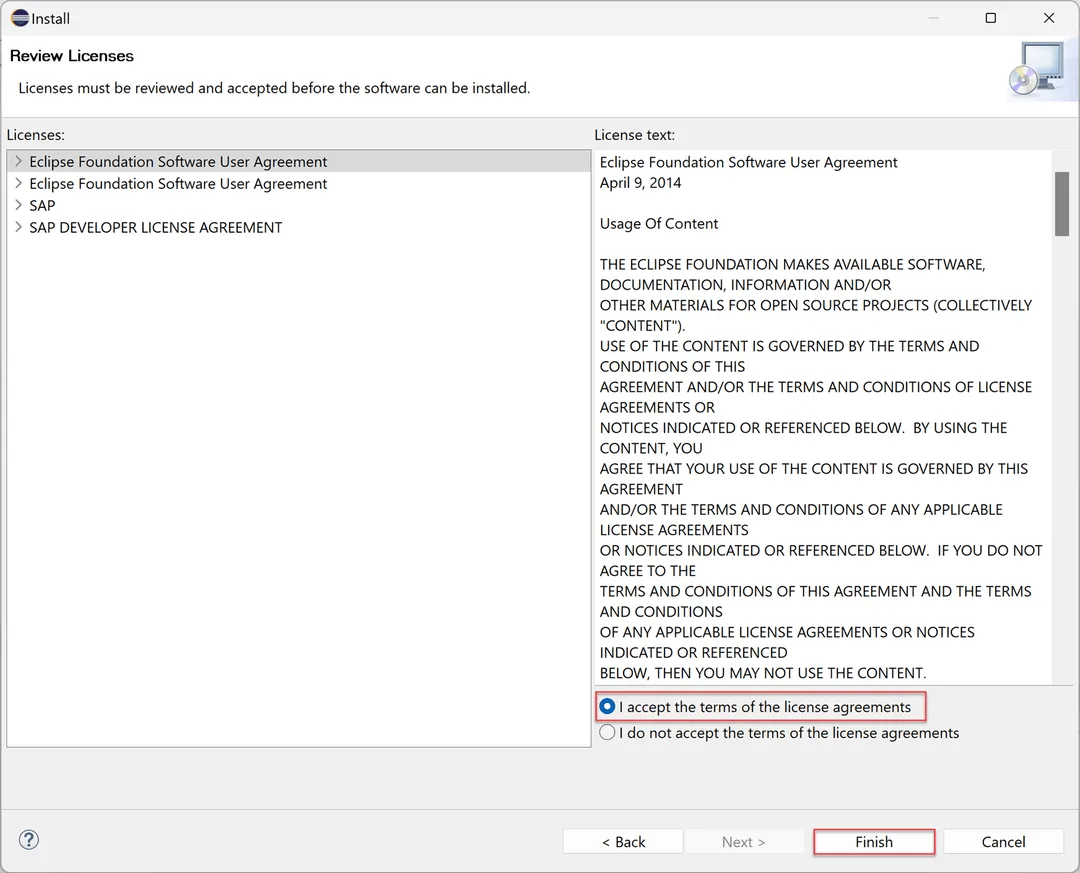
Accept the License agreement and click "Finish".
SAP GUI Install Steps
5

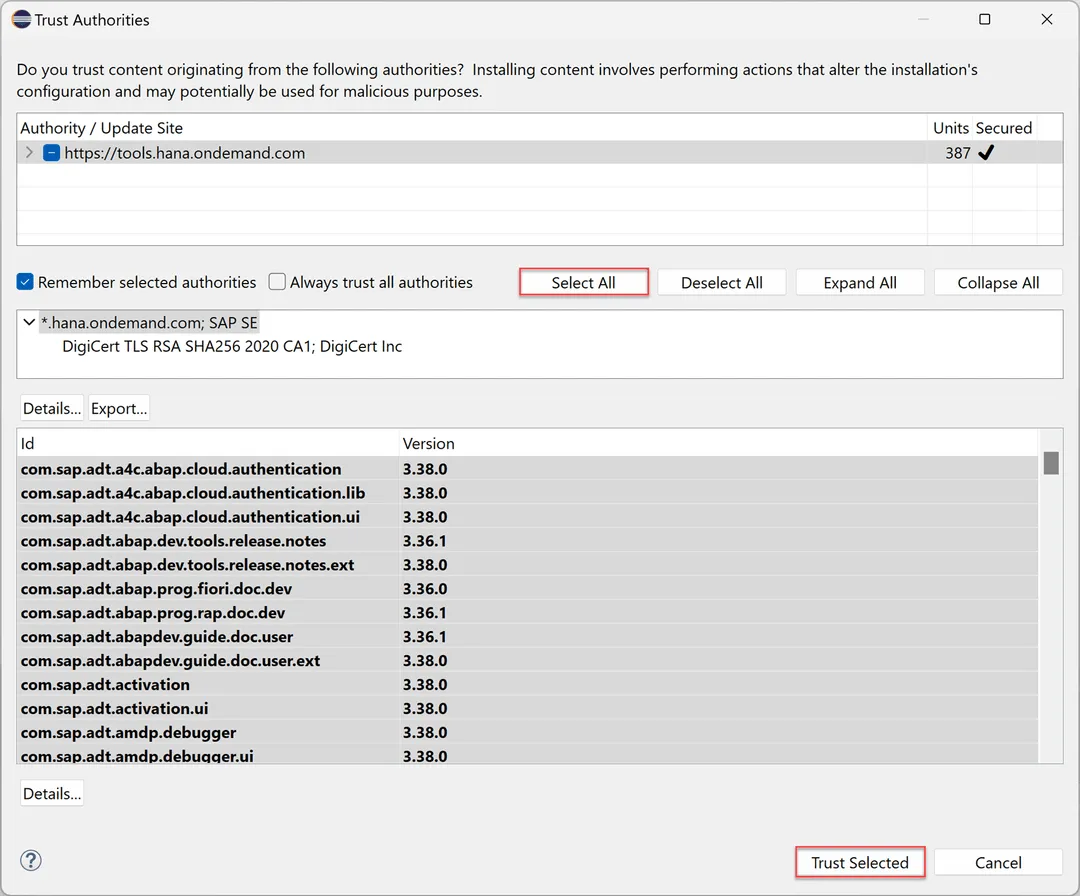
Click Select All and Trust Selected.

SAP GUI Install Steps
6

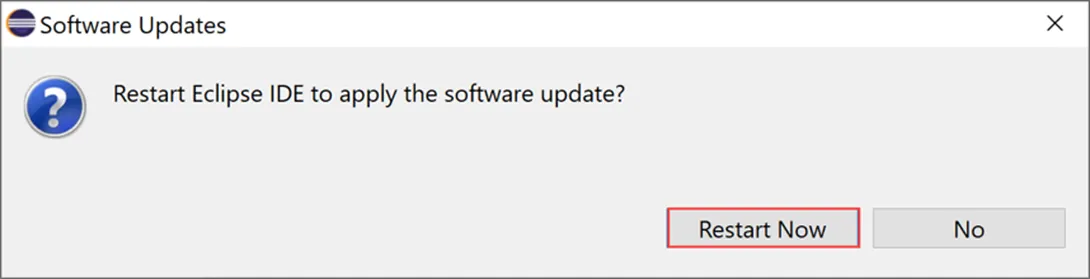
Click Restart Now.

SAP GUI Install Steps
4

Add ABAP Prespective.

Step 4 of 4

1

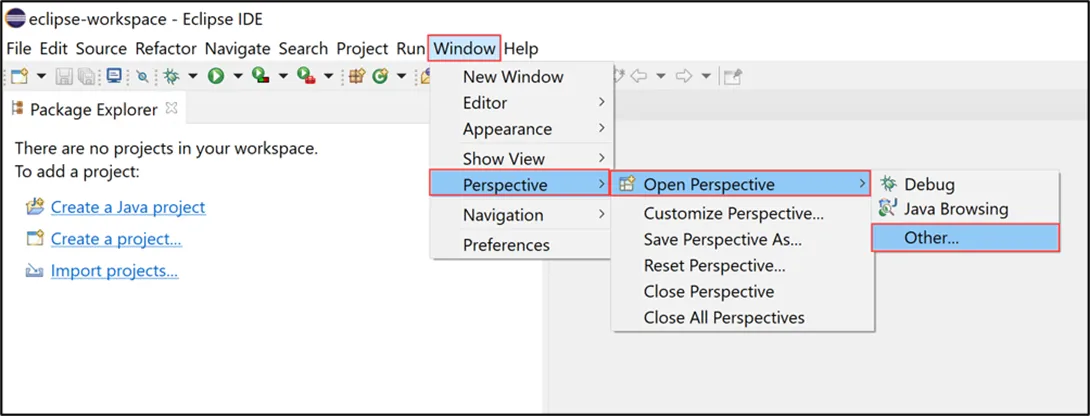
Open Eclipse IDE and Select Window>Perspective>Other Perspective>Other.
SAP GUI LOGON DETAILS
2

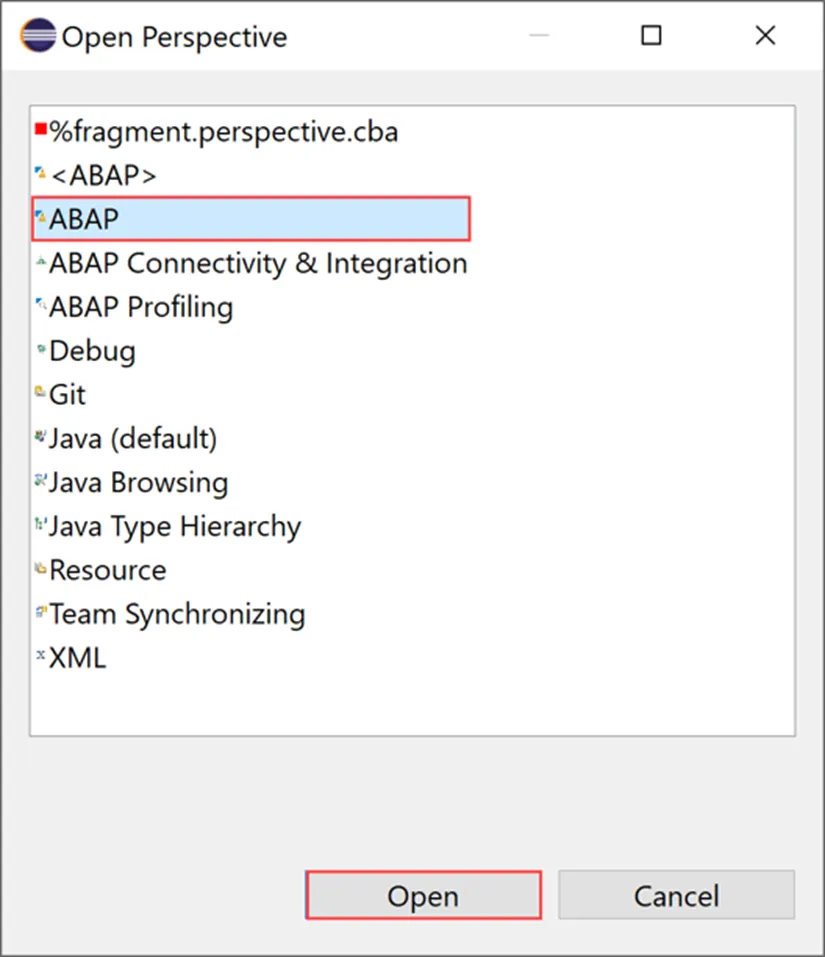
Select ABAP and click Open.

SAP GUI Install Steps
3

Select ABAP and click Open.

SAP GUI Install Steps
4

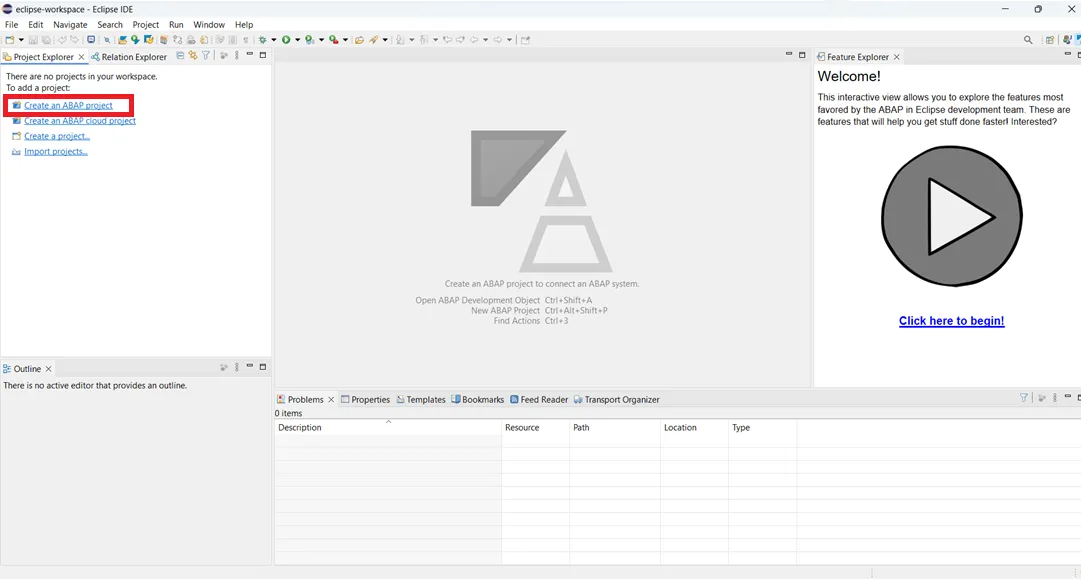
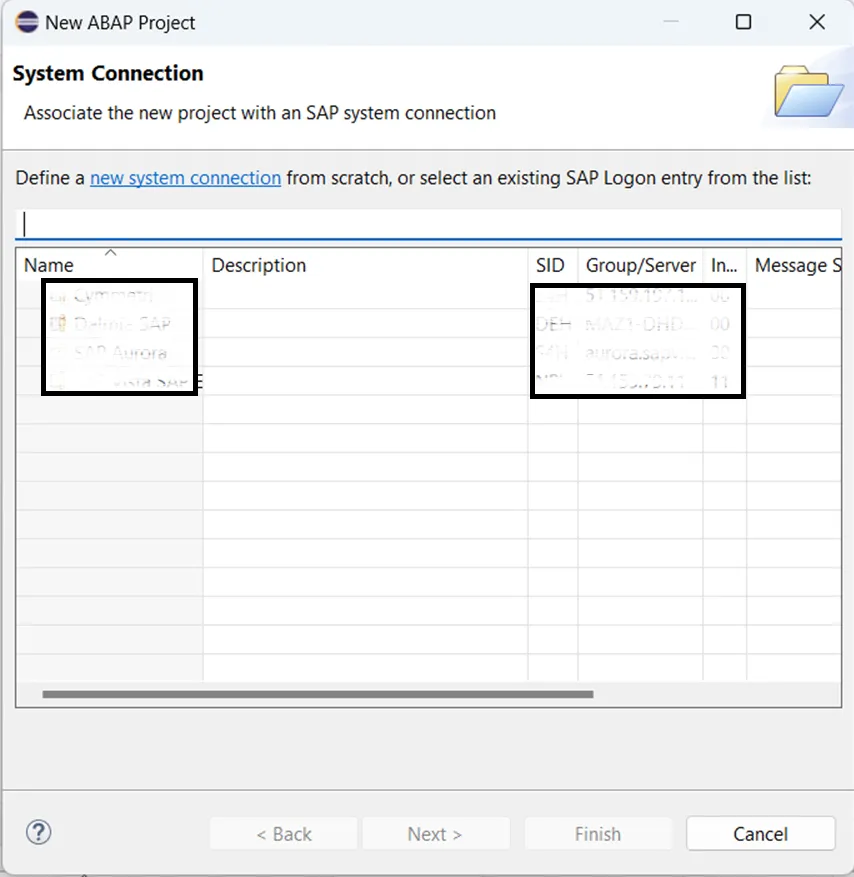
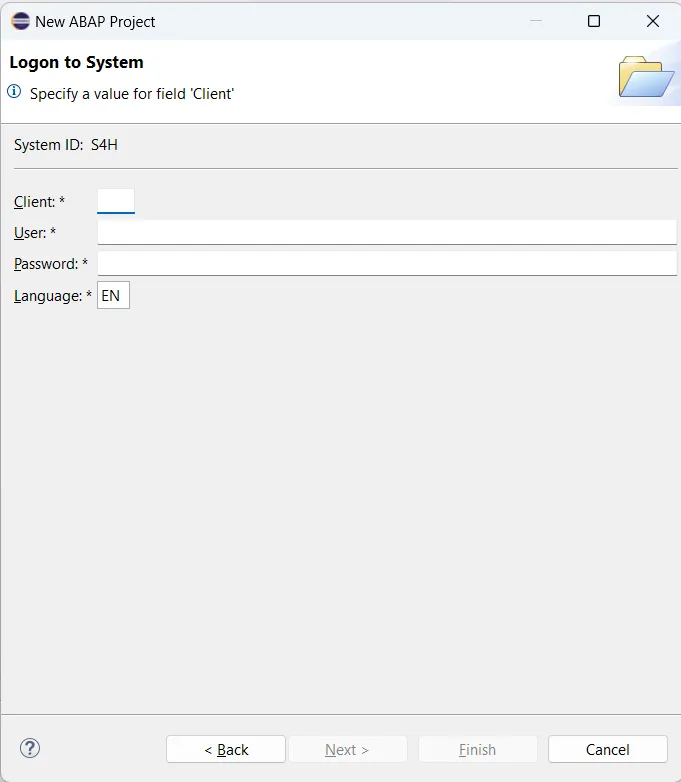
Now it will ask all the Linked SAP Servers list from the SAP GUI Logon.
SAP GUI Install Steps
5

Click “Next>” and Select the needed SAP Server and login with your credentials. Click “ Next>”.
SAP GUI Install Steps

Access by use case

Match your goal to the right environment

PracticeTrainingDemos & POCsMigrationsIntegrations & developmentTalk to an expert →

Our services

One partner for the whole SAP journey

Prefer to watch it done?

This short walkthrough covers the same three steps end to end  extracting the installer, running setup, and configuring your first SAP Logon Pad connection  so you can follow along at your own pace.

Installed ? What's next?

Get access to a live SAP server to start practicing right away.

Get SAP server access →

Enterprise-grade SAP consulting, digital infrastructure, and Industrial IoT solutions for global organizations.

+91 9000178236
contact@zynoraq.com
Zynoraq YoutubeZynoraq Instagram
OUR GLOBAL PRESENCE
INDIA (Head Office)
Zynoraq Technologies Pvt Ltd,
#135, 5th Floor, Western Aqua, Hi-tech City, Hyderabad,‍ Telangana, 500081, INDIA.
GST: 36AACCZ8007B1ZJ
USA
Zynoraq Technologies Inc,
8 The Green #5298 Dover, DE, 19901, United States .
OUR GLOBAL PRESENCE
INDIA (Head Office)
Zynoraq Technologies Pvt Ltd,
#133, 5th Floor, Western Aqua, Hi-tech City, Hyderabad,‍ Telangana, 500081, INDIA.
GST: 36AACCZ8007B1ZJ
USA
Zynoraq Technologies Inc ,
8 The Green #5298
Dover, DE, 19901,
United States .
OUR GLOBAL PRESENCE
INDIA (Head Office)
Zynoraq Technologies Pvt Ltd,
#135, 5th Floor, Western Aqua, Hi-tech City, Hyderabad,‍ Telangana, 500081, INDIA.
GST: 36AACCZ8007B1ZJ
USA
Zynoraq Technologies Inc,
8 The Green #5298 Dover, DE, 19901, United States .