.svg)
Three focused steps. Zero jargon. Backed by Zynoraq Basis consultants, the same team enterprises trust for licensing, rollouts and 24×7 support.
SAP GUI is the classic desktop client that connects your machine directly to an SAP ERP or S/4HANA system, giving you the full transaction-based interface consultants and end users work in every day.
Without SAP GUI installed and configured correctly, you can't log into a client system, run transactions, or practice on a training/demo server it's the first prerequisite for any SAP work.
A clean install, verified checkpoints at every step, and direct support from Zynoraq Basis team if anything doesn't connect the first time no guesswork, no dead ends.
RAM
4 GB minimum, 8 GB recommended
Disk space
At least 1.5 GB free
Operating system
Windows 10 or 11 (64-bit)
Network
Stable connection to your SAP server or VPN
Access
Valid SAP user ID and system connection details
License
Valid SAP GUI license via your organization or SAP Vista
The guide
Each step includes what to click, what to expect, and a checkpoint so you always know you're on the right track.
Download SAP GUI
Step 1 of 4
Unzip the SAP GUI installer, then launch SetupAll.exe as administrator.
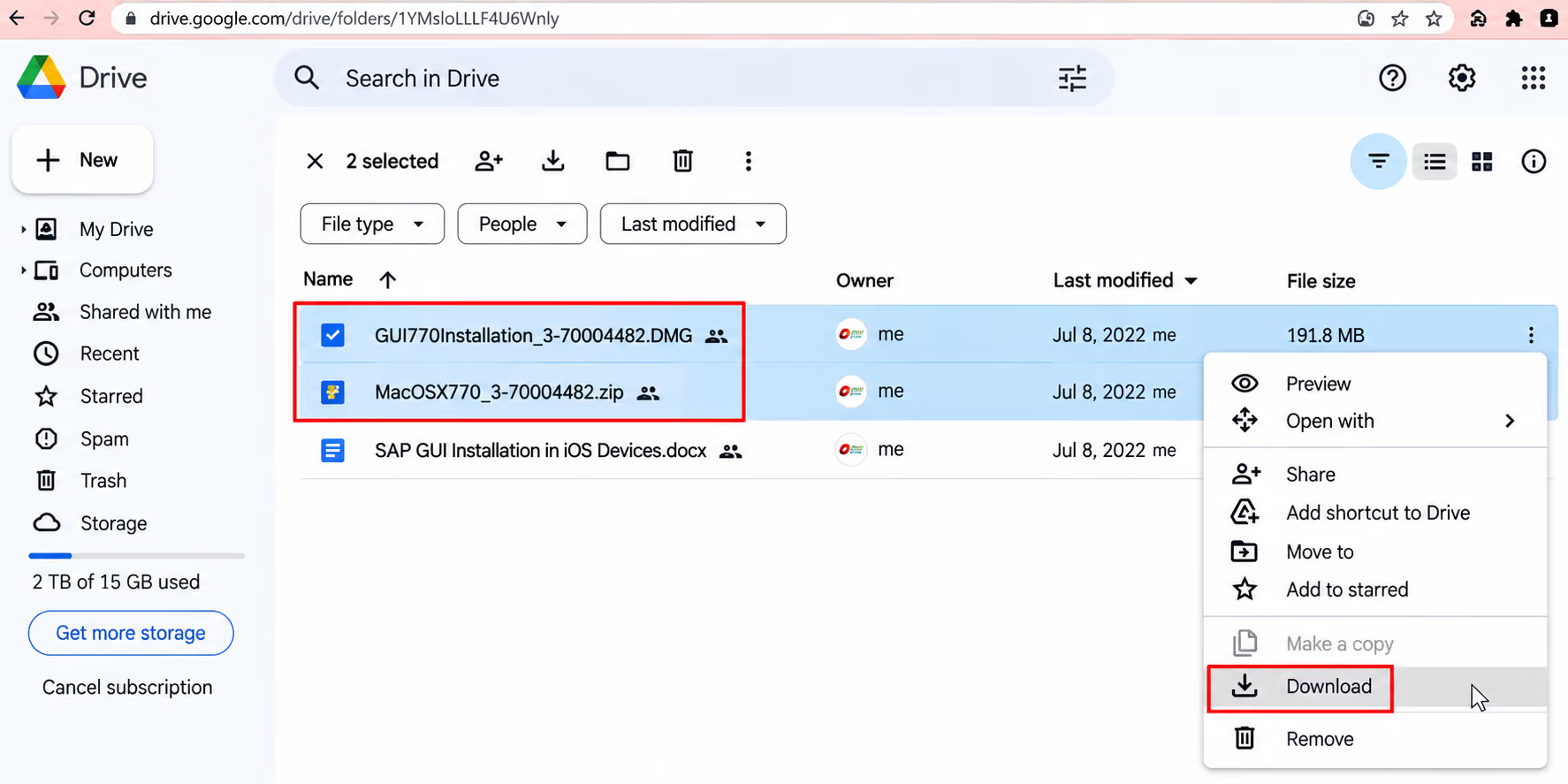
Download the file from above given link on top right.
.avif)
Select the software -> Right Click -> Download
Stuck at login?
We provision ready-to-use SAP user accounts within 24 hours — perfect for practice, training and demos.
Step 2 of 3
Pick the components you want the installer to lay down.
SAP GUI for java requires java to run.
Ensure you have a compatible java version installed. You can install OpenJDK on Ubuntu
Using the the following commands :
sudo apt update
sudo apt install openjdk-11-jre
To verify that java is installed in the system use the following command:
java -version
Navigate to the folder Containg the File.
Open a terminal and go to the directory where the ". jar" file is located
for example if it's in your Downloads folder.
Use the Following commands
cd ~/Downloads
Run the JAR File to install SAP GUI for Java.
Run the jar file with the java -jar command
This command will launch the installation process for SAP GUI for Java.
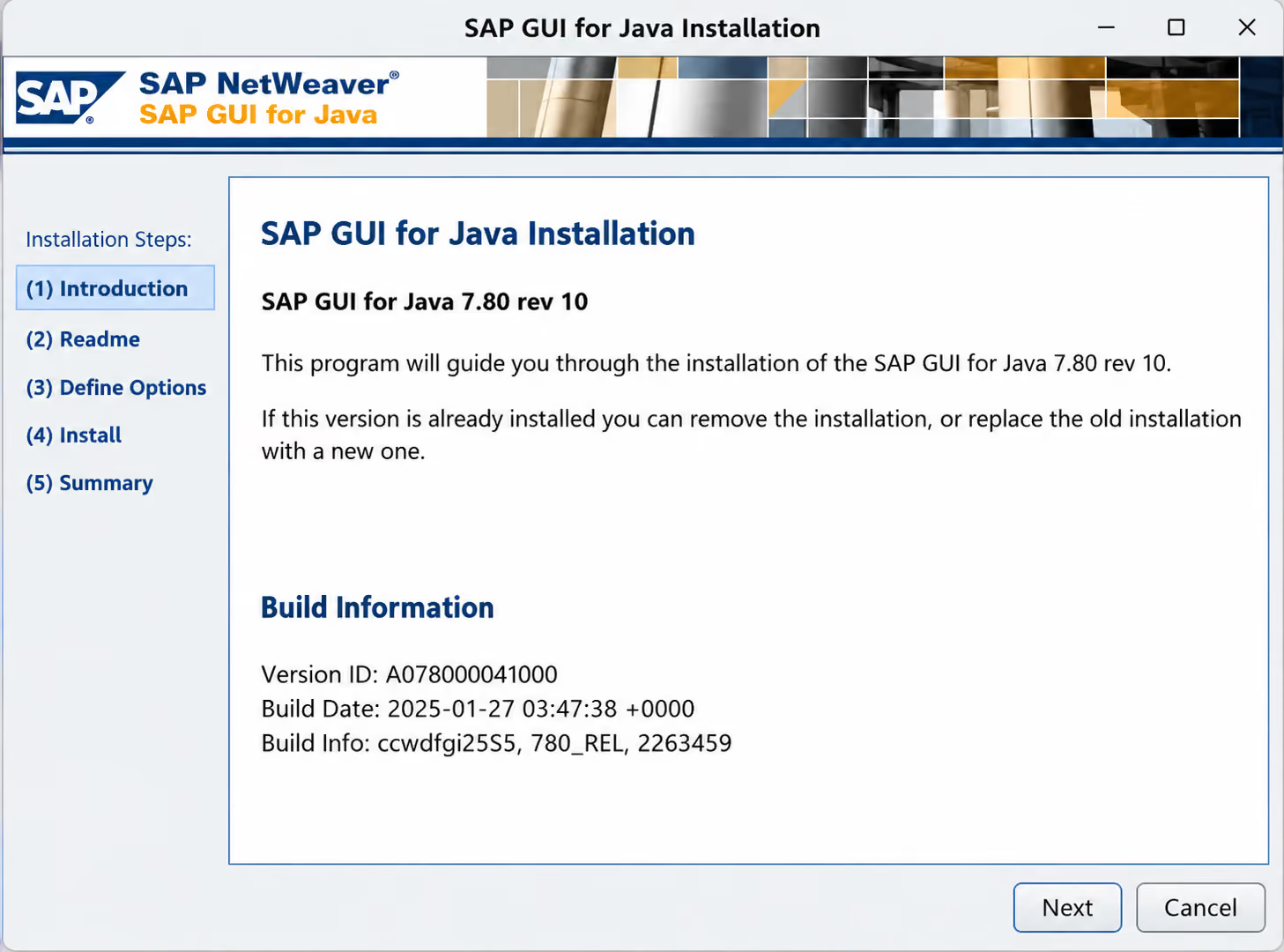
Follow the prompts in the installation wizard to proceed.
No system yet?
We spin up dedicated SAP demo systems in hours, ready for connection testing.
Step 3 of 3
Point SAP Logon at your system so you can log in for the first time.
Click Next
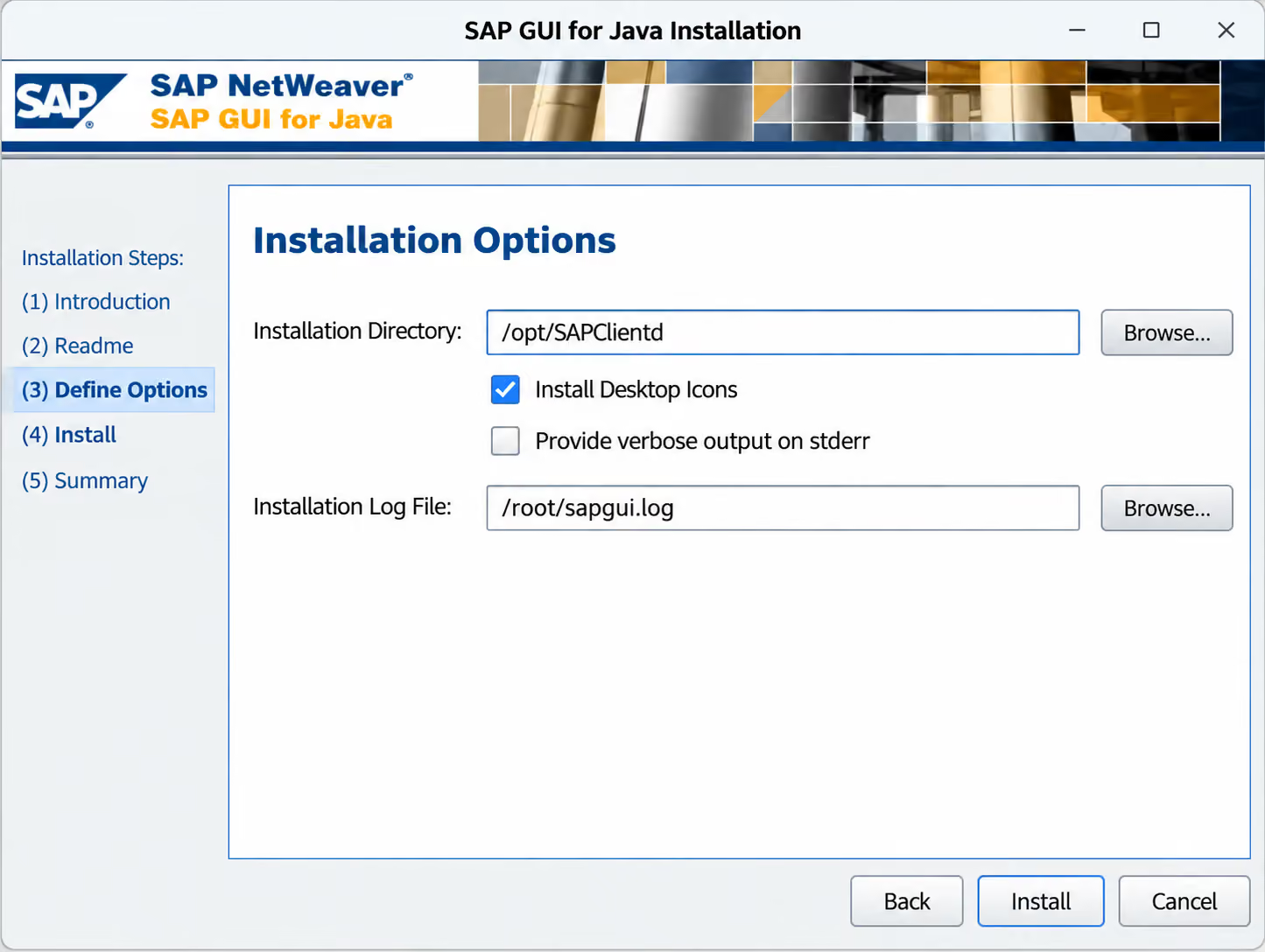
Choose installation Directory And Click On Install :
Save the entry, double-click it, and log in with your SAP user ID.
This short walkthrough covers the same three steps end to end extracting the installer, running setup, and configuring your first SAP Logon Pad connection so you can follow along at your own pace.
Get access to a live SAP server to start practicing right away.
Get SAP server access →FAQ
SAP GUI 7.80 (latest patch) is recommended for new installs. If your organization runs an older backend, SAP GUI 7.70 usually remains compatible — check with your Basis team if unsure.
Yes. The installer needs to be run as administrator to register components correctly, so you'll need local admin rights or IT to run it for you.
SAP GUI officially supports LINUX. On ARM devices it generally runs through emulation, but performance and support aren't guaranteed — a x64 machine or VM is recommended.
Double-check the application server, instance number, and system ID in your SAP Logon entry, and confirm your machine can reach the server (VPN connected, firewall not blocking the port).

Enterprise-grade SAP consulting, digital infrastructure, and Industrial IoT solutions for global organizations.
.avif)
.avif)


.png)
.png)